AirPods are one of the most popular wireless earbuds in the world, known for their sleek design, high-quality sound, and seamless integration with Apple devices. Despite their popularity, many people struggle with connecting AirPods to their devices, especially when switching between iPhones, Android phones, or computers. Knowing how to connect AirPods properly can save you a lot of time and frustration.
In this comprehensive guide, we will cover everything you need to know to connect your AirPods to any device. From the simplest setup on an iPhone to connecting with an Android phone or a Windows PC, this guide ensures that your AirPods are ready to deliver a high-quality audio experience. Whether you are a first-time user or someone who frequently switches devices, following these steps will make connecting your AirPods quick and hassle-free.
How to Connect AirPods to an iPhone or iPad
Connecting AirPods to an iPhone or iPad is straightforward thanks to Apple’s intuitive design. To begin, make sure your iPhone or iPad has Bluetooth enabled. You can do this by going to the Settings app, selecting Bluetooth, and switching it on. With Bluetooth activated, open your AirPods case and keep the AirPods inside.
A setup animation should automatically appear on your iPhone screen, prompting you to connect. Tap “Connect” and follow the on-screen instructions. Once the process is complete, your AirPods will automatically pair with your iPhone every time Bluetooth is active.
It is important to note that if you have multiple Apple devices signed in with the same Apple ID, your AirPods can connect to them automatically. This means you don’t need to pair your AirPods separately with each device. Understanding how to connect AirPods to an iPhone ensures a seamless and convenient wireless experience.
How to Connect AirPods to Android Devices
Even though AirPods are designed primarily for Apple products, they work perfectly with Android devices. To connect AirPods to an Android phone, start by putting the AirPods into pairing mode. Do this by pressing and holding the button on the back of the AirPods case until the LED light flashes white.
Next, open the Bluetooth settings on your Android device and select your AirPods from the list of available devices. Once connected, you can use your AirPods for listening to music, watching videos, or taking calls. Some Apple-specific features, such as automatic ear detection, will not work on Android. However, the core functions, including high-quality audio and call clarity, remain fully functional.
Learning how to connect AirPods to Android devices allows you to enjoy Apple’s wireless earbuds even without an iPhone, giving you flexibility across different platforms.
How to Connect AirPods to a Windows PC
Many people also want to use their AirPods with a Windows PC for work, online meetings, or entertainment. To connect your AirPods to a Windows computer, go to Settings, select Devices, and then click on Bluetooth & other devices.
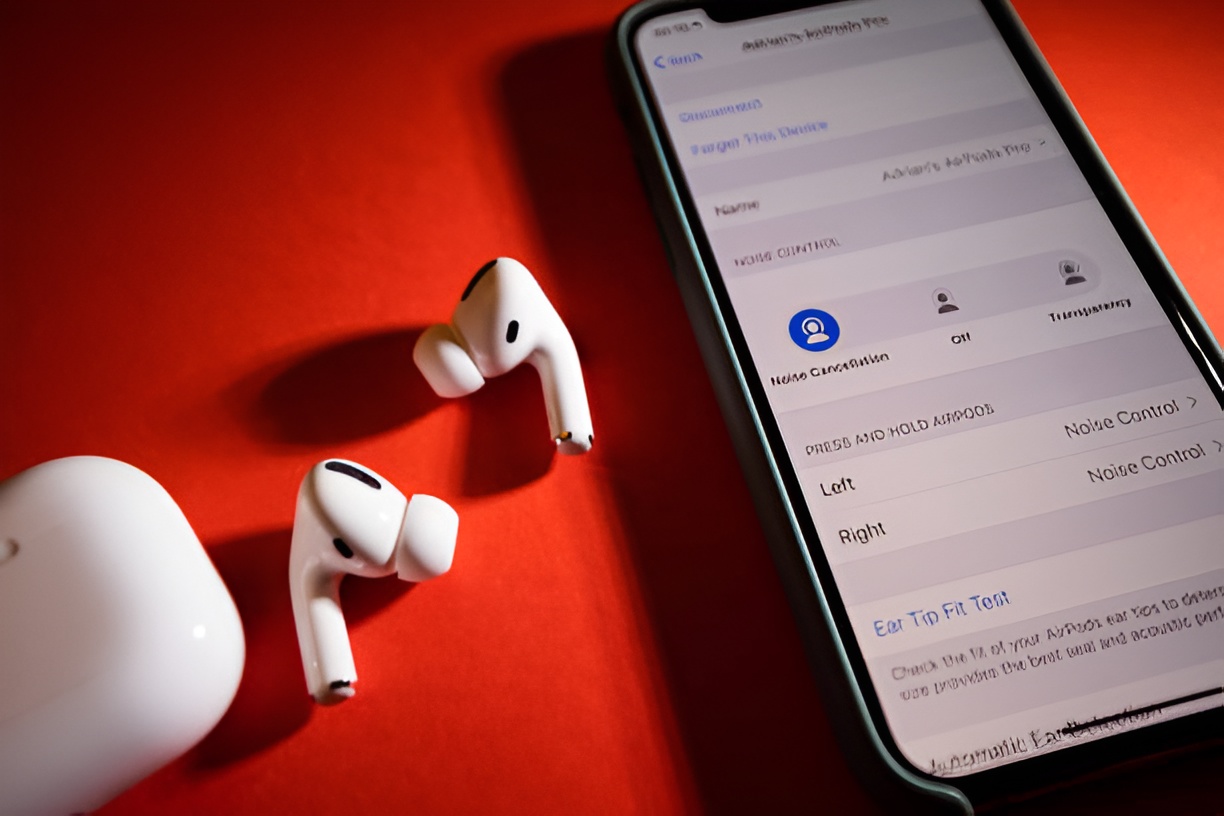
Put your AirPods in pairing mode by pressing the button on the back of the case until the light flashes white. Then, click on “Add Bluetooth or other device” on your PC and select your AirPods from the list. Once connected, your AirPods will function as both headphones and a microphone, making them useful for video calls and gaming.
Knowing how to connect AirPods to a PC ensures that you can enjoy the same wireless convenience across multiple devices, not just your mobile phone.
Troubleshooting Common Connection Issues
Sometimes, AirPods may fail to connect due to minor technical issues. One common problem is that the AirPods do not appear in your device’s Bluetooth list. Restarting your device and reopening the AirPods case usually fixes this problem.
Another issue could be poor audio quality, which may be caused by low battery levels or interference from other devices. Resetting your AirPods can often resolve this. To reset, press and hold the button on the back of the case until the light flashes amber and then white.
Bluetooth-related issues are also common. Ensure that your device’s software is up-to-date, as outdated firmware can interfere with connectivity. Addressing these issues helps you master how to connect AirPods and ensures that they perform consistently.
Advanced Tips for Maintaining Seamless Connectivity
To maintain smooth connectivity, it is essential to take care of your AirPods. Keep them charged and avoid leaving them uncharged for long periods. Frequent pairing and unpairing with multiple devices can sometimes confuse the connection, so try to limit unnecessary switches.
Additionally, regularly updating your device software ensures compatibility with AirPods and prevents connection issues. Clean your AirPods and case to avoid dirt or debris affecting the charging and connection. By following these tips, you not only understand how to connect AirPods but also how to maintain them for long-term use.
Using AirPods Features After Connecting
Once your AirPods are connected, you can take full advantage of their features. Siri voice commands, automatic ear detection, and touch controls can all enhance your experience. For example, double-tap gestures allow you to skip songs or answer calls, while Siri integration can be used to adjust volume or play specific tracks.
Understanding how to connect AirPods properly is just the beginning; learning how to use their features ensures you get the most out of your wireless earbuds.
Conclusion
AirPods provide a convenient and high-quality wireless audio experience, but connecting them correctly is essential to fully enjoy their benefits. Whether you are pairing with an iPhone, Android phone, or Windows PC, following these steps ensures your AirPods work flawlessly.
By mastering how to connect AirPods, troubleshooting common issues, and maintaining your earbuds properly, you can enjoy uninterrupted music, calls, and entertainment anytime. Wireless audio has never been easier, and with this guide, your AirPods will be ready whenever you need them.